API
signature/s - Transform signature
An optional hash used to verify that the transform URL hasn’t been modified.
Only needed when signed transforms are enabled for your image source.
bg - Background color
Defines the image’s background color. See colors for all supported formats.
<img src="logo.svg?w=500&bg=lavender">

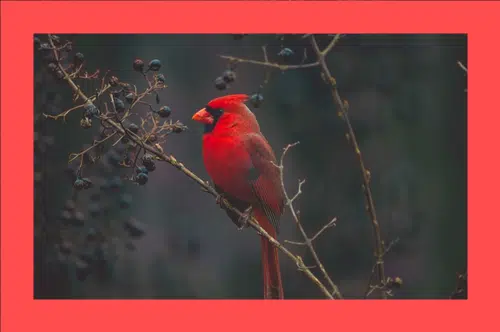
border - Border
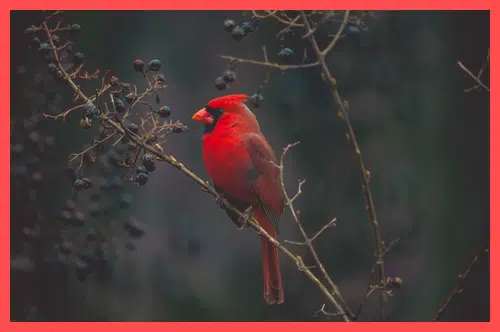
Applies a border around the image. Format: width,color,method.
<img src="bird.jpg?w=500&border=10,ff4d4d,overlay">
Width
Specifies border thickness in pixels or using relative dimensions.
Color
Defines the border color. See colors for supported values.
Method
Determines how the border is applied. Options:
overlay: Draws the border over the image (default).shrink: Reduces the image area within the same canvas.expand: Expands the canvas to include the border.
<img src="bird.jpg?w=500&border=10,ff4d4d,overlay">
bri - Brightness
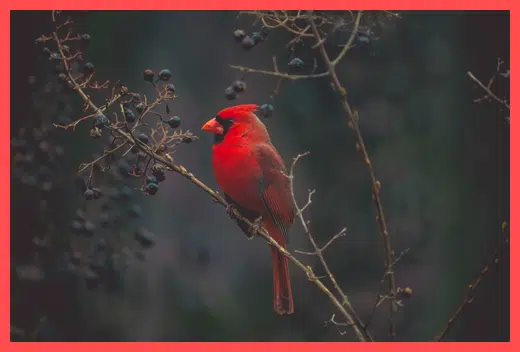
Controls brightness from -100 (darker) to +100 (brighter). 0 means no change.
<img src="bird.jpg?w=500&bri=-25">
con - Contrast
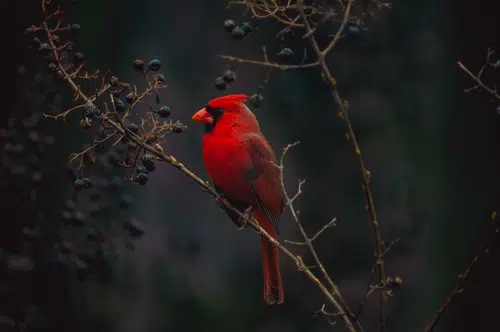
Controls contrast from -100 (less) to +100 (more). 0 leaves contrast unchanged.
<img src="bird.jpg?w=500&con=25">
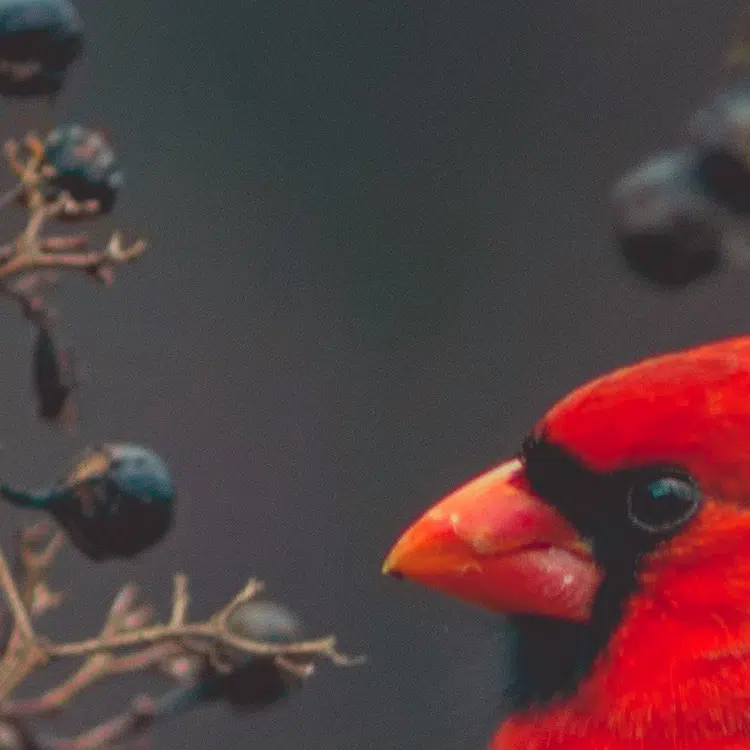
crop - Crop
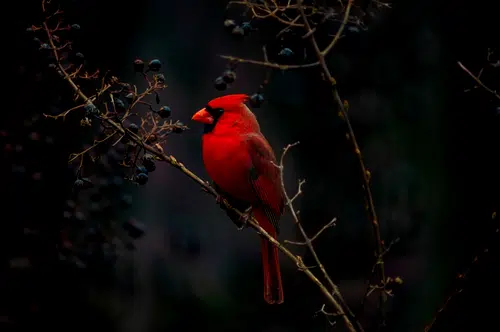
Crops the image to specific coordinates before resizing. Format: width,height,x,y.
<img src="bird.jpg?crop=100,100,915,155">
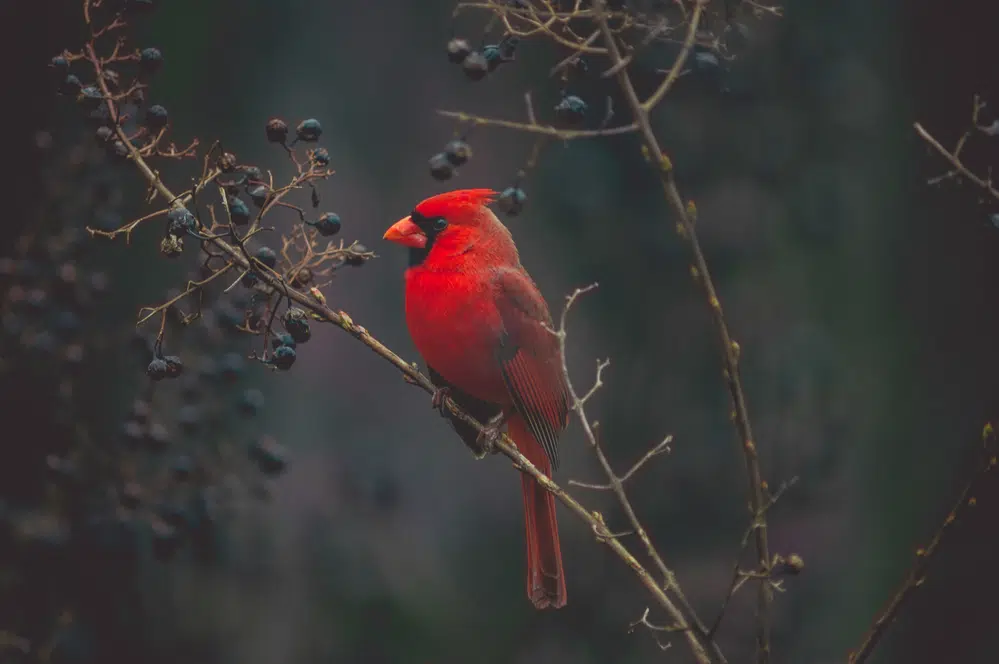
dpr - Device Pixel Ratio
Adjusts rendering for different device pixel densities (e.g. Retina displays). Requires a width or height. Default: 1. Maximum: 8.
<img src="bird.jpg?w=500&dpr=2">
fit - Fit
Accepts
contain: Default. Fits within dimensions, maintaining aspect ratio.max: Fits within dimensions without enlarging smaller images.fill: Fits without cropping; fills gaps with background color.fill-max: Likefill, but upscales smaller images.stretch: Forces image to exact dimensions, ignoring aspect ratio.cover: Crops to fill area without distortion.crop: Alias forcover.crop-x%-y%: Crops using a specific focal point (x%left,y%top).
cover - Crop to fill
Crops to fill both width and height while maintaining aspect ratio.
<img src="bird.jpg?w=500&h=500&fit=cover">
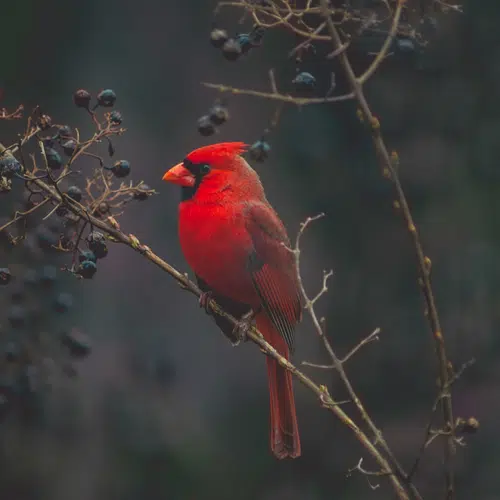
Crop Position
Specify crop placement with cover-top-left, cover-top, cover-top-right, cover-left, cover-center, cover-right, cover-bottom-left, cover-bottom, or cover-bottom-right. Default: cover-center.
<img src="bird.jpg?w=500&h=500&fit=cover-left">
crop-x%-y% - Crop by Focal Point
Crops around a focal point, defined by percentages.
<img src="bird.jpg?w=500&h=500&fit=crop-25-75">
To zoom into a focal point, add a zoom factor between 1.0 and 100.0. Example: crop-25-75-2 = 200% zoom.
<img src="bird.jpg?w=300&h=300&fit=crop-25-75-2.5">
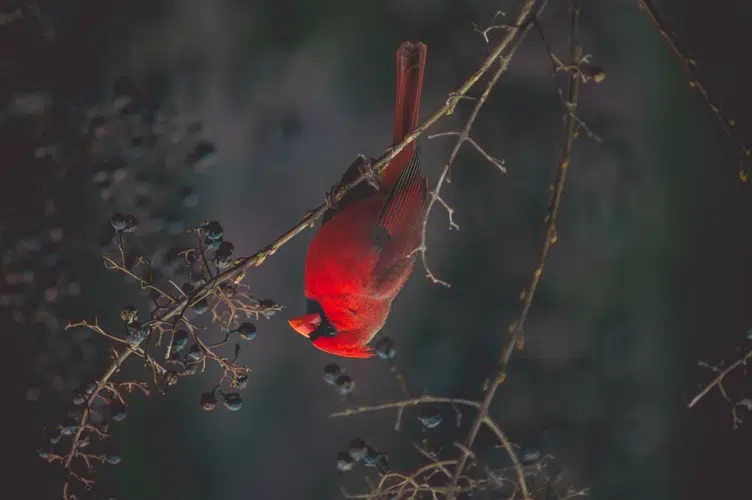
flip - Flip
Flips the image vertically (v), horizontally (h), or both.
<img src="bird.jpg?h=500&flip=v">
fm - Format
Forces output to a specific format: avif, webp, jpg, pjpg, png, gif or jxl. Default: avif.
<img src="bird.jpg?w=500&fm=gif">
gam - Gamma
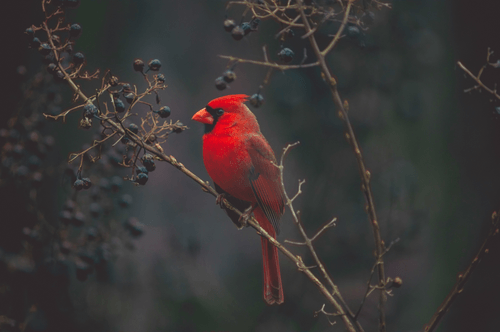
Adjusts gamma levels between 0.1 and 9.99.
<img src="bird.jpg?w=500&gam=1.5">
h - Height
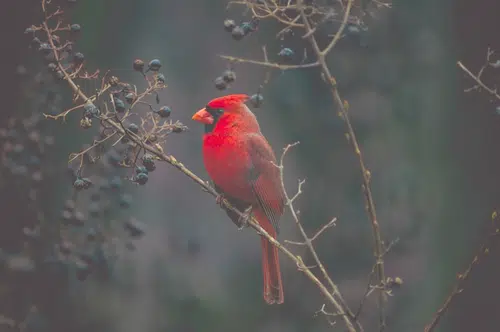
Defines image height in pixels.
<img src="bird.jpg?h=500">
interlace - Interlace
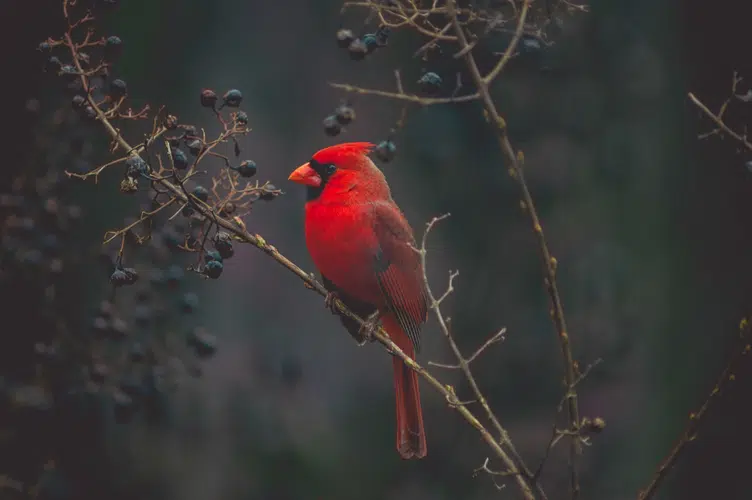
Defines whether the image loads progressively. Improves perceived loading speed on slower networks.
For GIF and PNG formats, enabling this may slightly increase file size.
Supported Formats
- JPG: Enables progressive scan.
- PNG and GIF: Enables interlacing.
When using
.pjpg, the image is automatically generated as a progressive JPEG regardless of this setting.
<img src="bird.jpg?interlace=1">
mark - Watermark
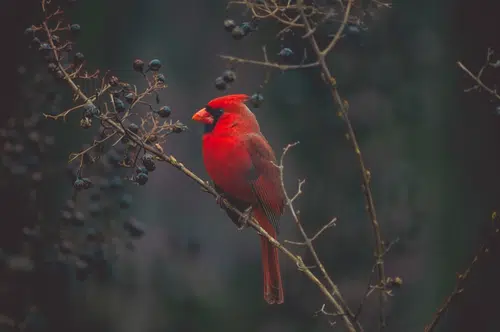
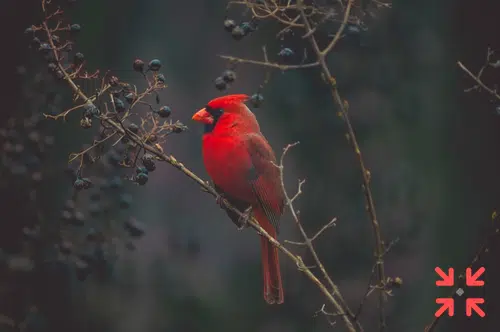
Adds a watermark image from your configured watermarks directory.
<img src="bird.jpg?mark=logo.svg">
markalpha - Watermark opacity
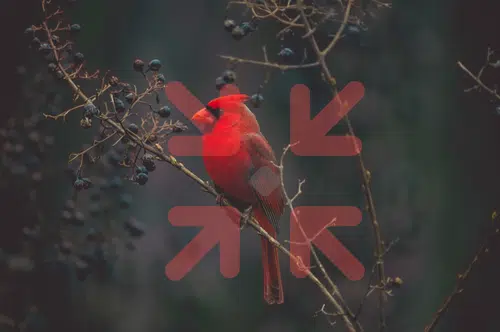
Controls watermark transparency (0–100). 100 = fully opaque, 0 = fully transparent. Default: 100.
<img src="bird.jpg?mark=logo.svg&markalpha=35">
markfit - Watermark fit
Defines how the watermark scales to its size constraints.
Accepts:
contain: Default. Fits within width/height while preserving aspect ratio.max: Fits within bounds without enlarging smaller images.fill: Fits without cropping; fills gaps with background color.stretch: Forces to dimensions, ignoring aspect ratio.cover: Resizes to fill, preserving aspect ratio. See crop.entropy: Crops to fit based on entropy measures.attention: Crops to a feature most likely to draw human attention.crop-x%-y%: Crops around focal point. See crop.
<img src="bird.jpg?mark=logo.svg&markw=200&markh=200&markfit=cover">
markh - Watermark height
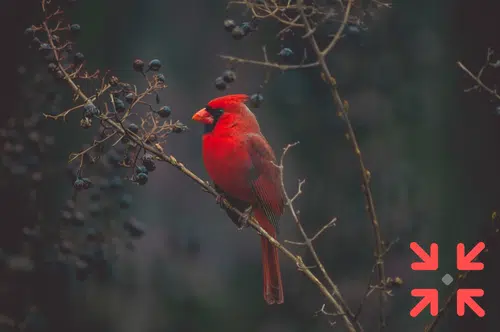
Sets watermark height in pixels or relative dimensions.
<img src="bird.jpg?mark=logo.svg&markh=200">
markorigin - Watermark image origin
Specifies the image origin for the watermark. If not set, the current origin is used.
markpad - Watermark padding
Adds uniform padding around the watermark. Shortcut for markx and marky. Ignored if markpos is center. When set, markx and marky are ignored.
<img src="bird.jpg?mark=logo.svg&markw=200&markpad=20">
markpos - Watermark position
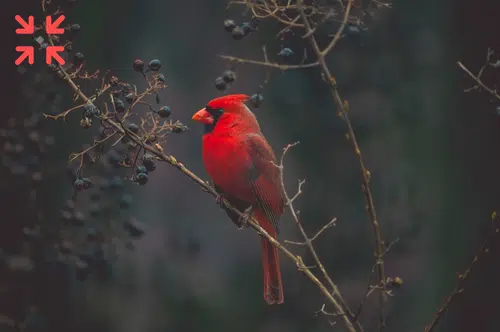
Positions the watermark. Options: top-left, top, top-right, left, center, right, bottom-left, bottom, bottom-right. Default: bottom-right.
<img src="bird.jpg?mark=logo.svg&markpos=top-left">
markw - Watermark width
Sets watermark width in pixels or relative dimensions.
<img src="bird.jpg?mark=logo.svg&markw=200">
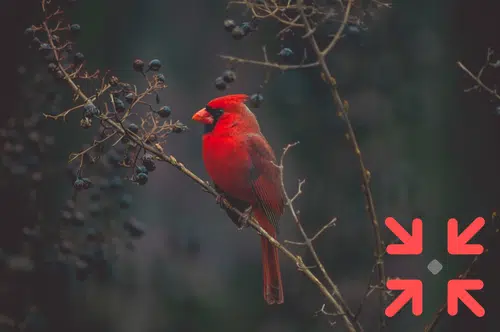
markx - Watermark X-offset
Sets horizontal offset from image edges. Measured in pixels or relative dimensions. Ignored if:
markposiscenter, ormarkpadis defined.
<img src="bird.jpg?mark=logo.svg&markw=500&markx=5w">
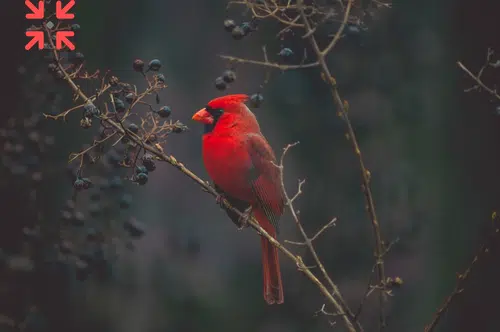
marky - Watermark Y-offset
Sets vertical offset from image edges. Measured in pixels or relative dimensions. Ignored if:
markposiscenter, ormarkpadis defined.
<img src="bird.jpg?mark=logo.svg&markw=500&marky=10h">
or - Orientation
Rotates the image. Accepts: auto, 0, 90, 180, 270. Default: auto (uses EXIF data).
<img src="bird.jpg?h=500&or=90">
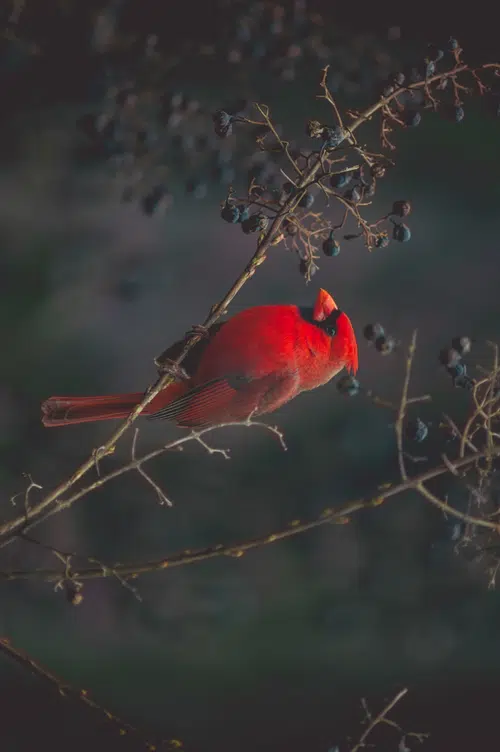
q - Quality
Sets output quality (0–100). Default: 90. Applies to jpg, pjpg, webp and avif.
<img src="bird.jpg?w=500&q=25">
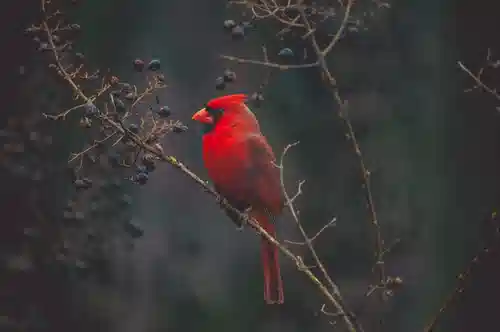
sharp - Sharpen
Increases sharpness between 0 and 100.
<img src="bird.jpg?w=500&sharp=15">
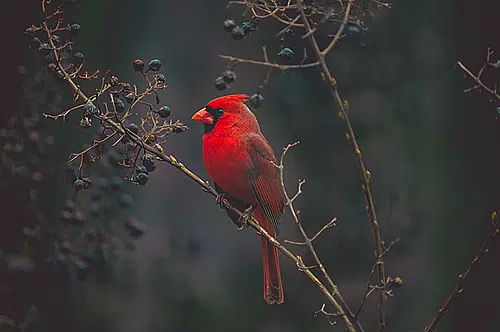
w - Width
Defines image width in pixels.
<img src="bird.jpg?w=500">
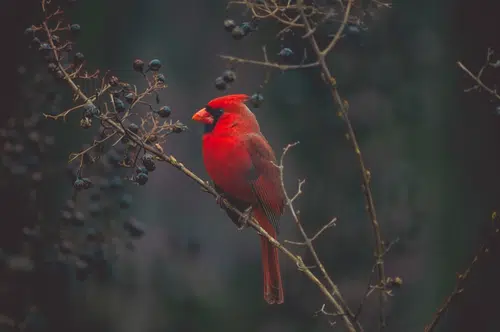
Relative dimensions
Relative dimensions let you define width or height values as a percentage of the base image which is useful for effects like borders or watermarks.
To apply a relative dimension, enter a percentage number (from 0 to 100) followed by w for width or h for height.
For example, 5w means 5% of the main image’s width.
<img src="bird.jpg?w=500&border=10h,ff4d4d,overlay">
Colors
Color values can be provided in several formats.
Hexadecimal
- 3-digit RGB:
ccc - 4-digit ARGB:
5ccc - 6-digit RGB:
cccccc - 8-digit ARGB:
55cccccc
Color names
Named colors are also supported.